DOCUMENTATION
0. OVERVIEW
2. INSTALLATION
4. CREATE OP
5. SEARCH OP
6. SEARCH CODE
7. LIBRARY
8. PALETTE
9. VST
10. AI
11. HUB
12. LOCATIONS
13. RECENT PROJECTS
14. SETTINGS
15. MCP
16. UPDATE
17. WHY
18. CHANGELOG

0. OVERVIEW
twozero is designed to significantly simplify and speed up boring actions and reduce amount of mouse clicks during daily life in TouchDesigner, like creating OPs and changing it's defualt settings, searching for OPs/old components or projects/palette comps/python code..
twozero is injected directly into TouchDesigner user interface, thus it leaves no traces in your projects.
twozero consists of several utilities centered around a "search bar" with customizable hotkeys and other settings.
ABBREVIATIONS:
TD - TouchDesigner
OP - TD's operator
UI - user interface
LMB - left mouse button
RMB - right mouse button
MMB - middle mouse button
[key] - keyboard button
1. SYSTEM REQUIREMENTS
Windows: Win 10+ modern gaming class machine.
Mac: M1 or higer, macOS 10.14+
TouchDesigner Free/Commercial/Pro, minimum build: 2025.33070
2. INSTALLATION
WINDOWS:
1. Drop twozero.tox to TD network editor -> Install
2. Confirm admin access (WHY?)
MACOS:
1. Allow TouchDesigner full disc access (WHY?):
OPTION+F2 -> Privacy & Security -> Full Disc Access -> TouchDesigner -> turn on (use + at bottom if there is no TouchDesigner in a list)
2. Drop twozero.tox to TD network editor -> Install
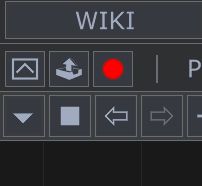
In case of success you will see twozero launcher icon next to 'Open palette' button.
NOTES:
All twozero settings and data are stored on a disk, so it is possible to install and uninstall twozero at any time without loosing any data.
twozero data location could be changed via twozero settings.
twozero requires installation each time TD is updated, however all the settings will be loaded automatically.
UNINSTALL:
Go to twozero setting -> uninstall.
3. TOOLSET AND USAGE
twozero consists of several utilities centered around a "search bar".
twozero tools are designed to enhance actual work by simplifying past works reusage and minimizing needs of file management.
Each tool could be assigned to keyboard shortcut via Settings.
GENERAL USAGE:
1. Click twozero launcher icon - you are at the root level.
2. Select a tool
3. Use a tool.
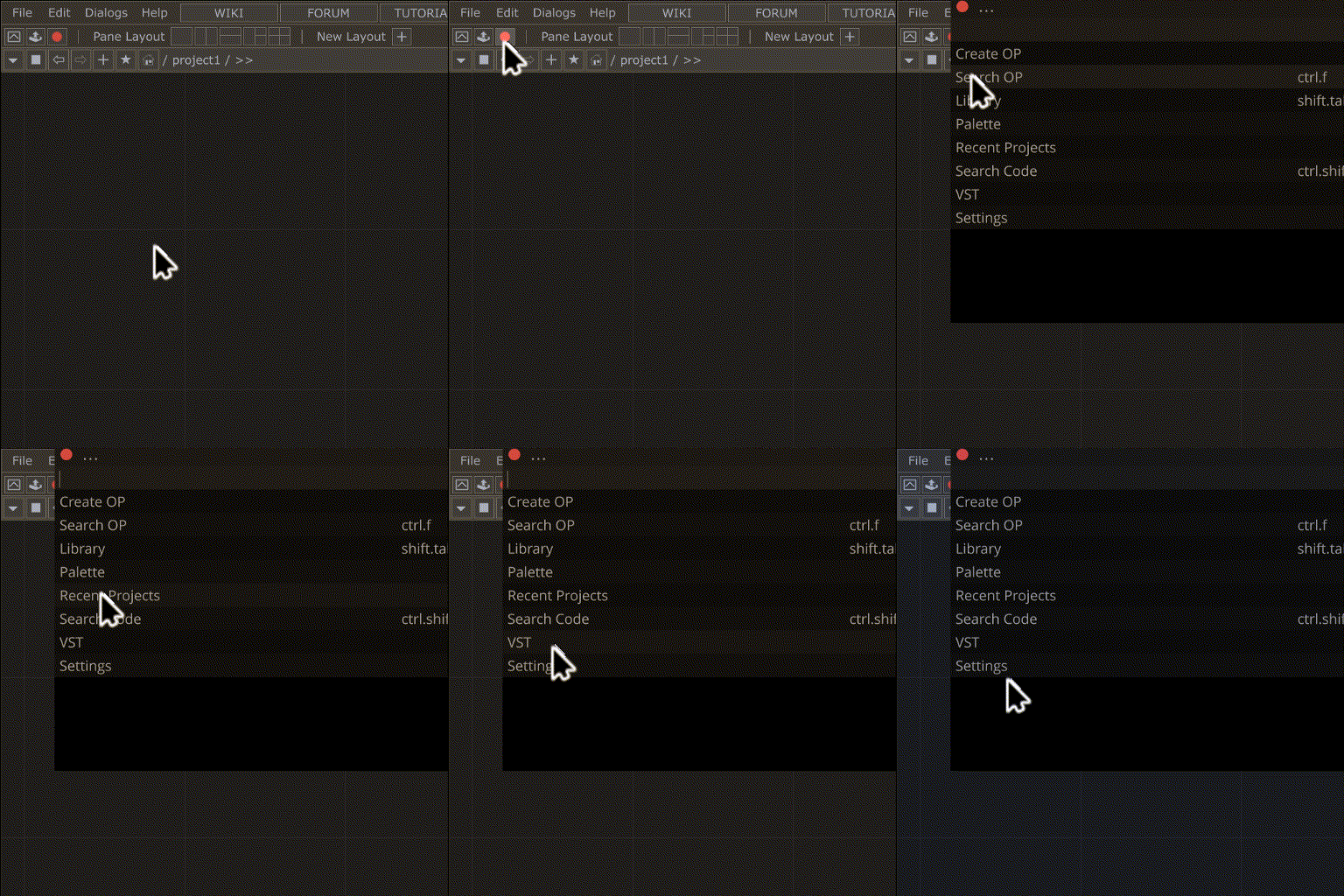
Most of operations could be performed with keyboard only, by typing in Search Bar and up/down/enter keys.
LMB also works fine.
RMB on list items opens a context menu with additional actions (where available).
All tools could be assigned to keyboard hotkeys via Settings
Press ESC or click red dot to exit twozero
Click ... at navigation bar to go back to root level or press [CMD/CTRL]+[UP]
Hold mouse pointer at navigation bar over current tool name to see quick help.
LIST OF TOOLS:
Create OP - Create new OPs and redefine defaults for new OPs
Search OP - Enhanced operator search
Search Code - Search python code through all DATs
Library - Save/Load components and templates
Palette - Search in TD palette
VST - VST plug-ins search and create vstCHOPs
AI - Browse and create AI model adapters (twozero.ai)
Hub - Cloud component sharing via twozero.ai
Recent Projects - search through all recent projects
Locations - project locations bookmarks
Settings - twozero settings
4. CREATE OP
CREATE NEW OPs:
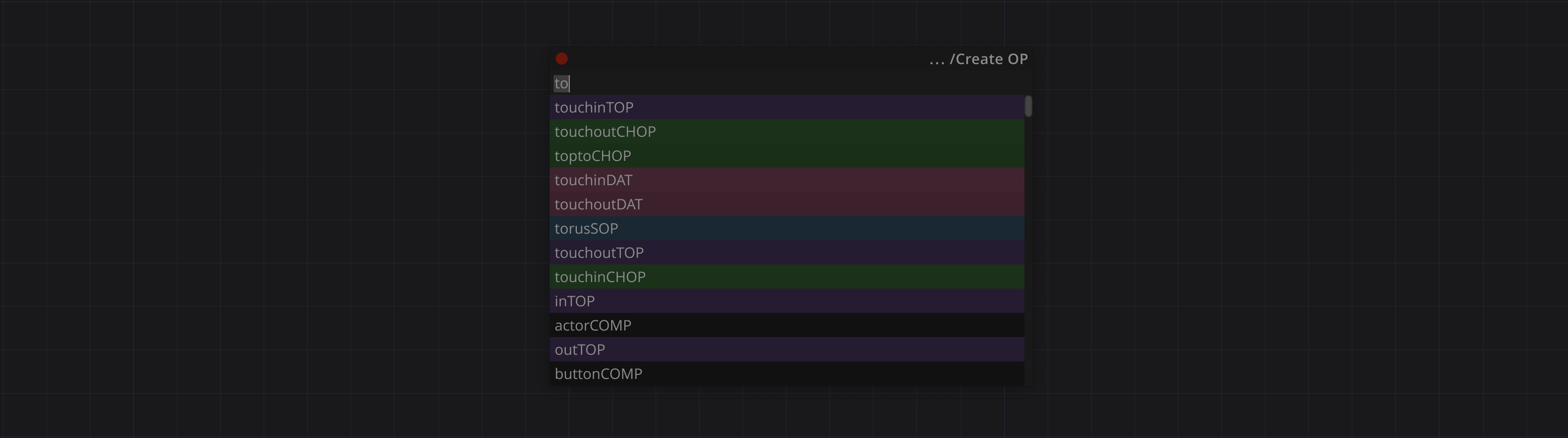
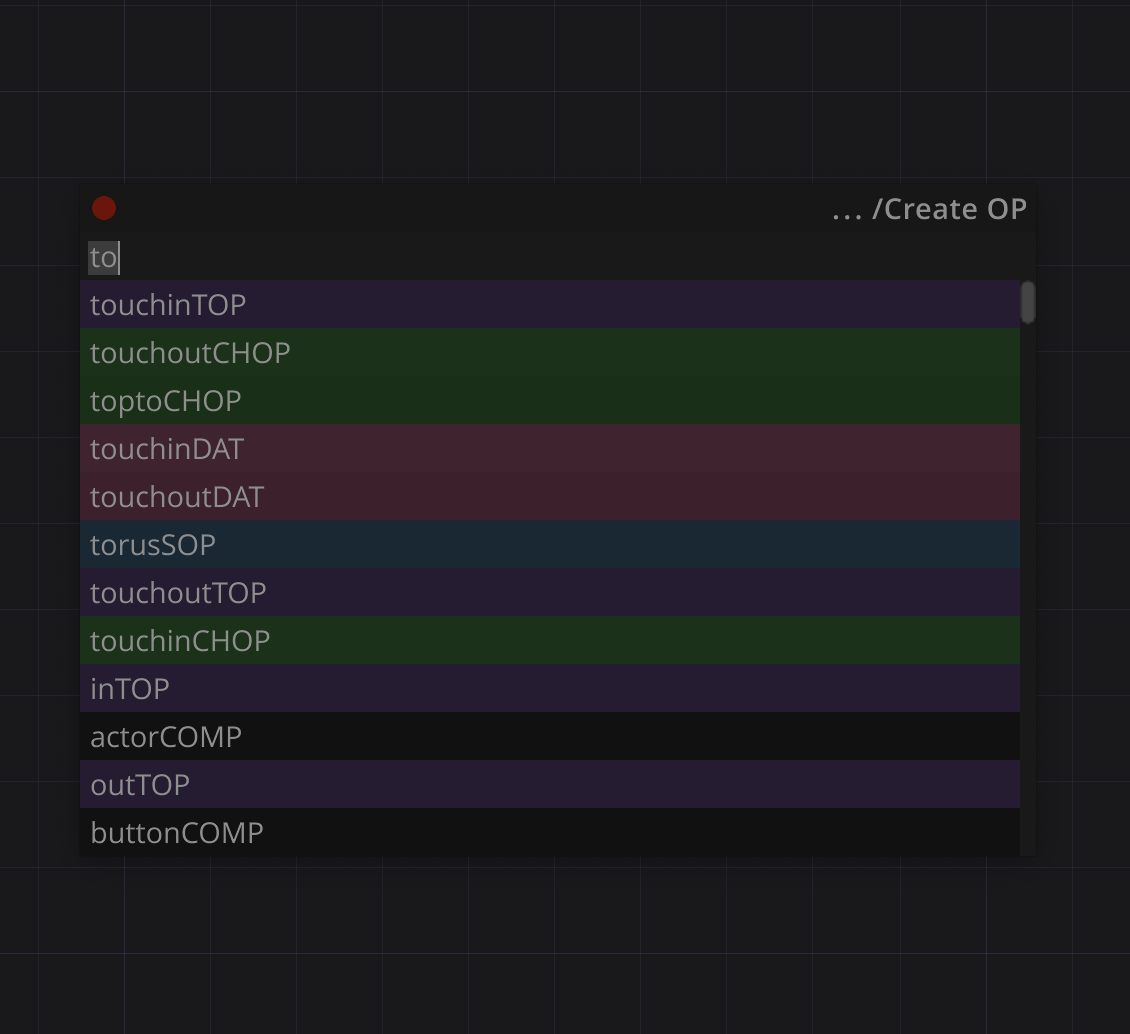
Create new OPs is similar to origianl TD 'create OP' dialog. [UP]/[DOWN]/[ENTER] keys also works.
USAGE:
1. Open the Create OP diaolg in a regular way.
2. Start typing the OP type. It is possible to search by word parts, for example:
'a de ou' -> audiodeviceoutCHOP
'a osc' -> audiooscillatorCHOP
3. Use [UP/DOWN] keys to select, [ENTER].
or
3. LMB on item.

REDEFINE DEFAULT SETTING FOR NEW OPs:
1. Select OP(s) in NetworkEditor with desired settings
2. Open Create OP tool
3. Type '='
4. Press [ENTER] -> Confirm

RIGHT-CLICK MENU:
RMB on an OP type with custom defaults (marked with + in the right column) opens a context menu:
Reset to default - remove custom defaults for that OP type, restoring factory behavior.
NOTES:
Will be saved/loaded as defaults: parameters and their modes and expressions, docked OPs and their parameters, DAT's content
5. SEARCH OP
Search OP by name or/and type.
The search performs within a current location and it's childs.
SEARCH SYNTAX:
'name type'
Both name and type are optional.
name and type are separated with space.
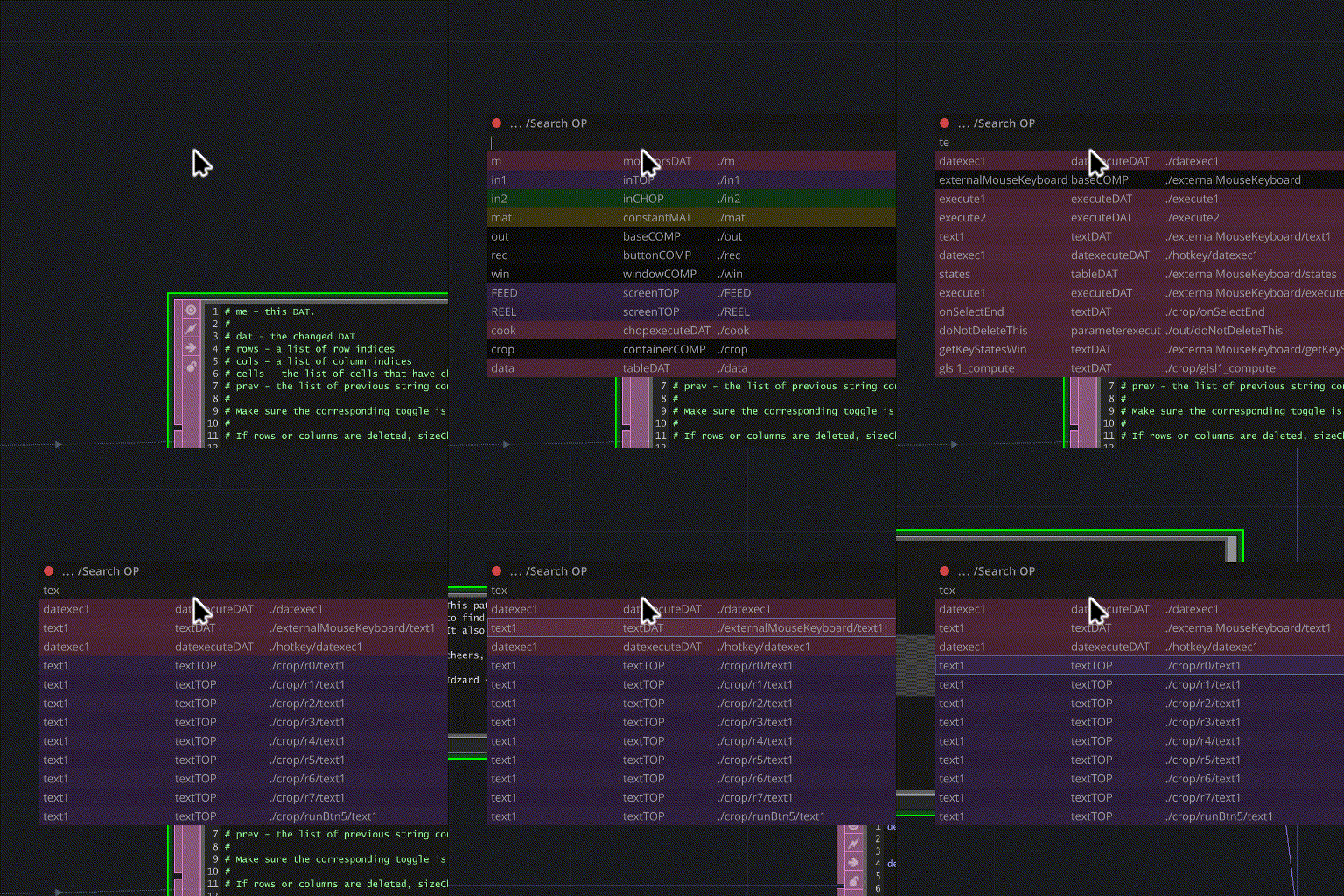
To search by OP type only - start with space, e.g. ' noisechop',' textdat',' sop'

Search results are sorted in following order:
1. Depth from current location
2. name search position in OP name
3. OP type
Pressing [UP]/[DOWN] keys or selecting with LMB - automatically navigates to selected OP
SEARCH EXAMPLES:
'no' - will find all types OPs with names like: noise1, mono1, nvdenoise1
'co cho' - will find CHOPs with names like 'constant', 'record'
' spee' - will find all speedCHOPs
6. SEARCH CODE
Search python code through all DATs
7. LIBRARY
Library Tool handles save/search/load OPs across different project.
It is possible to save/load both components and set of OPs, it's connections and parameter expressions (aka templates).
It also optionally collects and store to library external assets (for example moiviefileinTOP's movie file) then copy and relinks them while loading from library.
To search by multiple parts of the name - separete parts by spaces. For example searching for 'noiseWithSpeedOne' could be done by typing: 'no sp' or 'noise sp' or 'n sp on' e.t.c as well as with 'noisewiths'.
SAVE TO LIBRAY:
1. Select OP(s) in NetworkEditor
2. Open Library Tool
3. Type '+nameOfItem'
4. [ENTER]
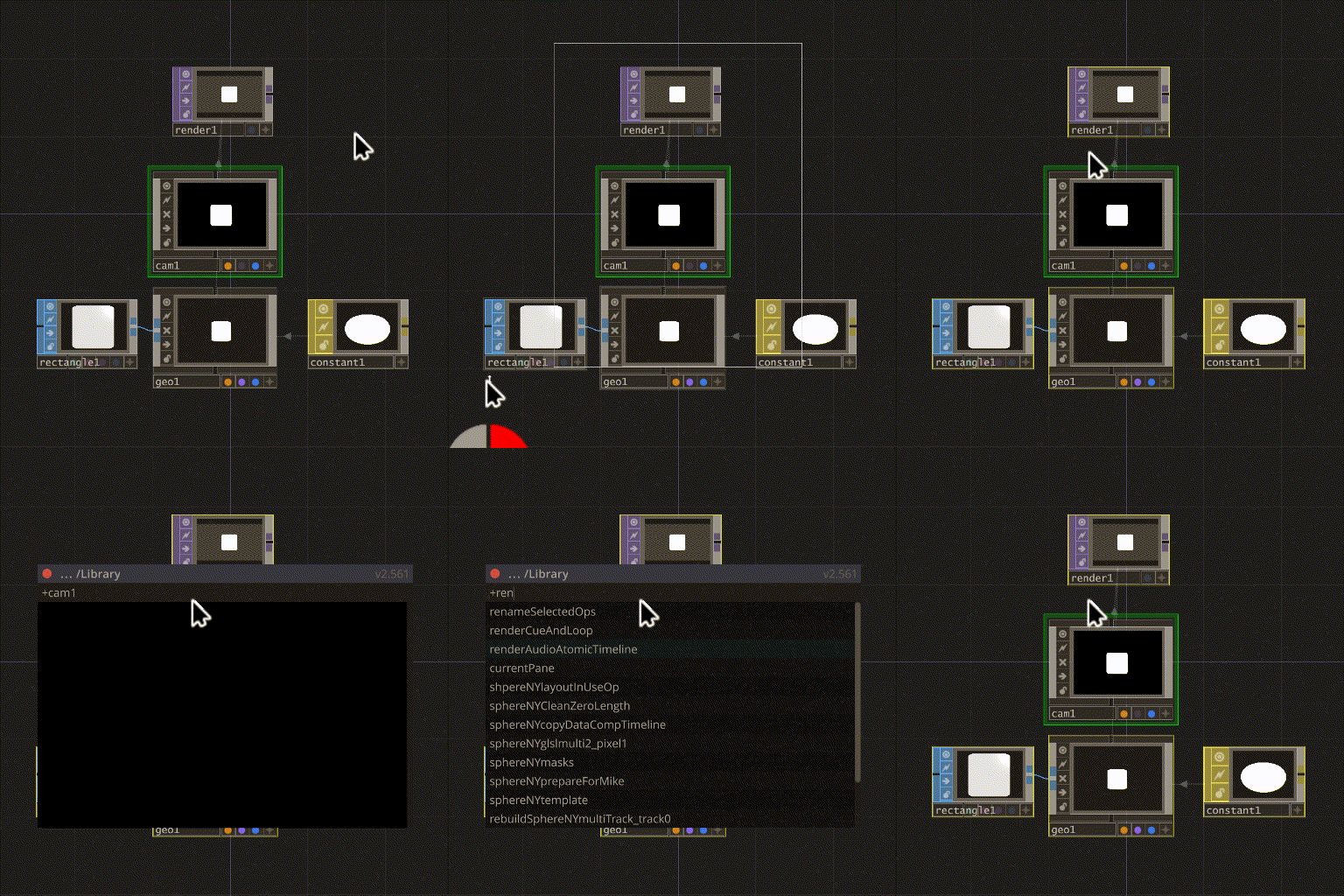
LOAD FROM LIBRAY:
1. Start typing item name
2. Select item from the list with keyboard or mouse
3. [ENTER] or LMB
4. Place OP(s) in NetworkEditor

RIGHT-CLICK MENU:
RMB on a library item opens a context menu:
Navigate to file - show .tox file in Finder/Explorer
Delete - remove item from library (with confirmation dialog, backup is kept)
REMOVE FROM LIBRARY
CMD/CTRL + Delete/Backspace -> confirm
or
1. Start typing '-nameOfItem'
2. LMB on item -> confirm
NOTES:
By default Library is located in TD preferences folder.
To change library location use Settings:
1. Settings -> library -> select new location
2. Check copy library to copy existed items to new location or uncheck to initialize empty library
MULTIPLE MACHINES:
In case using multiple machines - it is good idea to relocate the library to shared or cloud folder.
In our experience Dropbox works good for that, simply set 'Available Offline' for the folder via Dropbox settings.
In that case, the library will be accessible and synchronized across all computers, significantly simplifying components and templates reusage across all machines.
8. PALETTE
Search in TD palete
9. VST
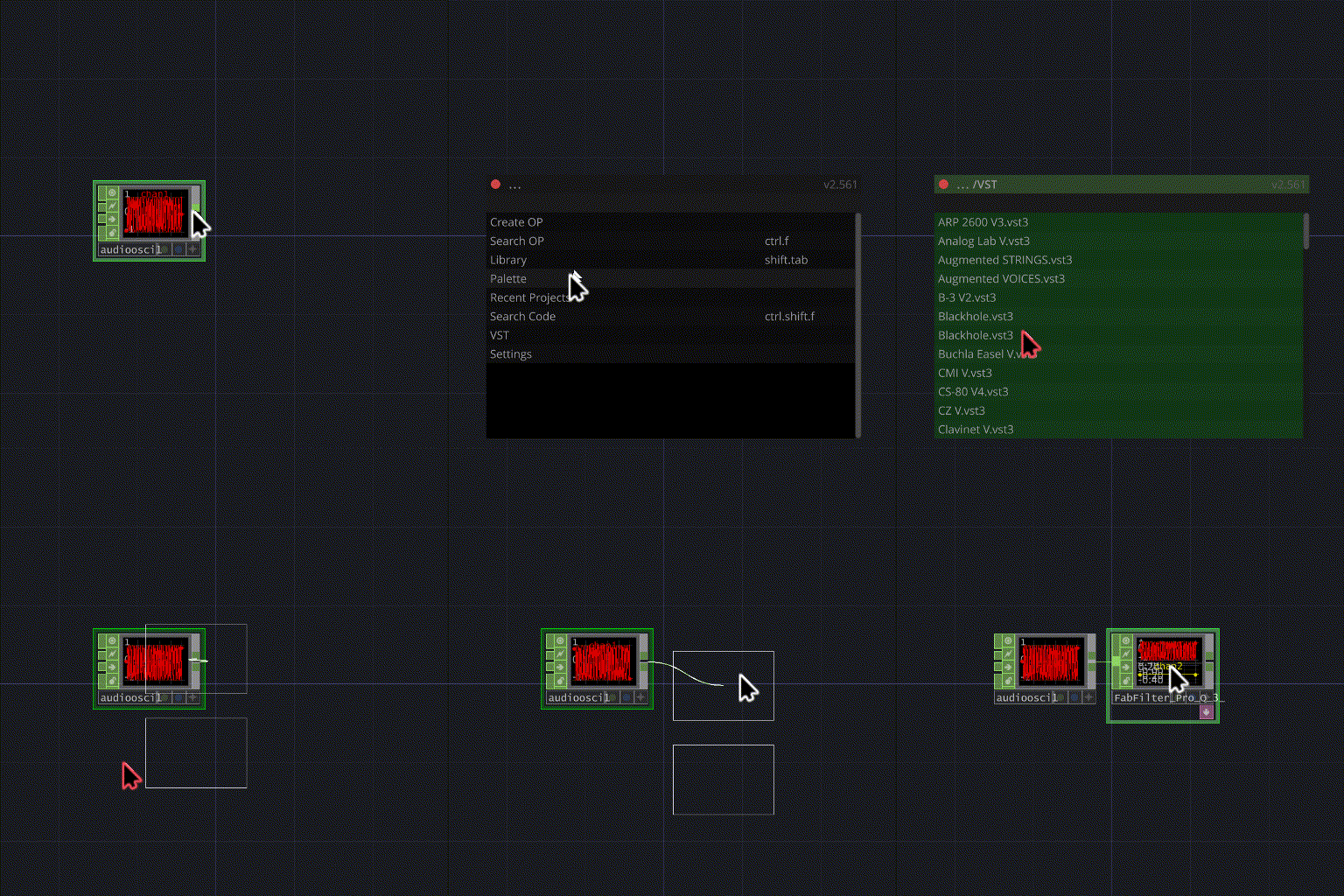
VST plug-ins search and create vstCHOPs
10. AI
Login required - invites only
AI MODEL BROWSER:
Browse generative AI models and create AI adapter COMPs linked to twozero.ai.
Requires a twozero.ai account.
USAGE:
1. Open the AI tool.
2. Search or browse available model families and individual models.
3. [ENTER] or LMB on a model family → creates adapter with best model auto-selected.
[ENTER] or LMB on a specific model (listed indented under its family) → creates adapter with that exact model pinned.
Families with only one model are shown as a single flat row (no expandable family header).
RIGHT-CLICK MENU:
RMB on any model or family → opens model info (JSON with full model metadata and pricing).
ADAPTER TYPES:
The tool creates one of three adapter COMPs depending on model's generation type:
chat — text-to-text and image-to-text (multimodal LLM). Output: DAT.
image — text-to-image, image-to-image. Output: TOP.
video — image-to-video, text-to-video. Output: TOP.
NOTES:
Models are sorted by recency of use.
Adapters auto-update to the latest template version on next AI tool open.
Models and pricing are fetched live from twozero.ai on tool open.
11. HUB
Login required - invites only
CLOUD COMPONENT SHARING:
Hub is a GitHub-like cloud storage for TD components and networks.
Upload your OPs, patches and templates once — access them from any machine at any time.
Supports file versioning and optional automatic collection of external assets (movies, images, etc.).
Requires a twozero.ai account.
NAVIGATION:
Hub has three levels — navigate with [ENTER]/[→]/[←]:
repos — list of your repos (folders). Entry point.
files — components inside a repo. [ENTER] or [→] on a repo to open.
versions — version history of a file. [→] on a file to open. [←] goes back one level.
FIRST TIME SETUP:
Open Hub — a login dialog will appear automatically.
Enter your twozero.ai email → receive a 6-digit code → enter it → done.
CREATE A REPO (FOLDER):
Files can only be uploaded inside a repo — create one first.
Type '/new_repo $reponame' → [ENTER].
UPLOAD:
1. Open a repo ([ENTER] on it).
2. Select OP(s) in Network Editor.
3. Type '+name' (optionally '+name?description').
4. [ENTER] → packages and uploads. Confirm whether to collect external assets.
DOWNLOAD:
1. Open a repo, select a file.
2. [ENTER] or LMB → downloads and places the latest version into the current network.
To download a specific version: open versions ([→] on file) → [ENTER] on the version.
VERSION HISTORY:
Every upload creates a new version of the file. All versions are kept.
[→] on a file → opens the versions list (date, size, uploader, description).
[ENTER] on a version → downloads that specific version.
[CMD/CTRL]+[Delete/Backspace] → delete selected version only.
In files scope → [CMD/CTRL]+[Delete/Backspace] → delete file and all its versions.
SHARING:
Type '/share $reponame @username &permission' → [ENTER].
Tab-complete each part with [ENTER] as you go.
Permissions: read, write, root.
Shared repos appear in the other user's repos list.
OTHER COMMANDS (type / to see all):
/logout — sign out.
NOTES:
External assets (movie files, images, etc.) are optionally collected and bundled with the component.
VST plugins are handled separately and relinked on load.
OP names are automatically renamed to avoid conflicts in the target network.
12. LOCATIONS
PROJECT LOCATIONS BOOKMARKS:
Save and restore viewport positions: network path, scroll position and zoom level.
Locations are stored per-project in /local/pisang_locations.
Navigating through the list live-previews each location in the Network Editor.
SAVE LOCATION:
Type '+name' → [ENTER] saves the current viewport (network + position + zoom).
NAVIGATE TO LOCATION:
Search or scroll through the list — viewport updates in real time as you move.
[ENTER] or LMB → confirms and closes twozero.
REMOVE LOCATION:
[CMD/CTRL]+[Delete/Backspace] → remove selected location.
NOTES:
Locations marked as lost indicate the saved network path no longer exists in the project.
13. RECENT PROJECTS
Search through all recent projects.
LMB or [ENTER] - load project
RIGHT-CLICK MENU:
RMB on a project opens a context menu:
Navigate to file - show project file in Finder/Explorer (available for found projects and folders)
Open in new window - launch the project in a new TouchDesigner instance (available for existing/found projects only)

14. SETTINGS
general:
library - location for the most of data managed by twozero. Also used by Library and Recent Projects logs.
dialog size - the size of twozero window (XS / S / M / L / XL).
num lines - number of visible lines with search results for all twozero tools.
Pisang creates OPs - if Yes, twozero intercepts the standard TD Create OP dialog.
auto update - twozero will check and install updates each time TD starts.
scroll OP's parameters - twozero will alter OP's parameter value under the mouse cursor on mouse scroll. Handy while using touchpads. Use with CTRL/SHIFT to in-de/crease step, use ALT to scroll entire parameter group.
autosave - automaticaly save project every [autosave interval] minutes.
autosave interval - if autosave is on, defines the interval in minutes.
store OP defaults to library - if Yes, Create OP tool will store user defaults for new OPs in library folder, otherwise in local preferences folder.
manage VST - enable VST management features.
uninstall - uninstall twozero from TD. This will not affect Library data.
check updates - manually check for twozero updates.
mcp:
auto start MCP - automatically start the MCP server when twozero initializes. Allows AI agents (e.g. Claude Code) to control TD via Pisang.
local only MCP - if Yes, reject connections from non-localhost addresses (recommended for security).
MCP default port - set one base port once (for example 40404). twozero uses it for the primary instance and auto-assigns next ports for additional opened TD projects. You do not configure separate ports manually for each instance; connect your client to the base port.
hotkeys:
Assign hotkey for each tool:
1. Select a tool
2. [ENTER] or LMB
3. Press hotkey, or cancel/clear.
Hotkeys can also be assigned directly from the root tool picker:
RMB on a tool → Assign hotkey / Change hotkey → press desired key combination.
15. MCP
MCP SERVER:
twozero includes a built-in MCP (Model Context Protocol) server that lets AI agents such as Claude Code control TouchDesigner directly — create operators, read networks, run scripts and more.
ENABLE MCP:
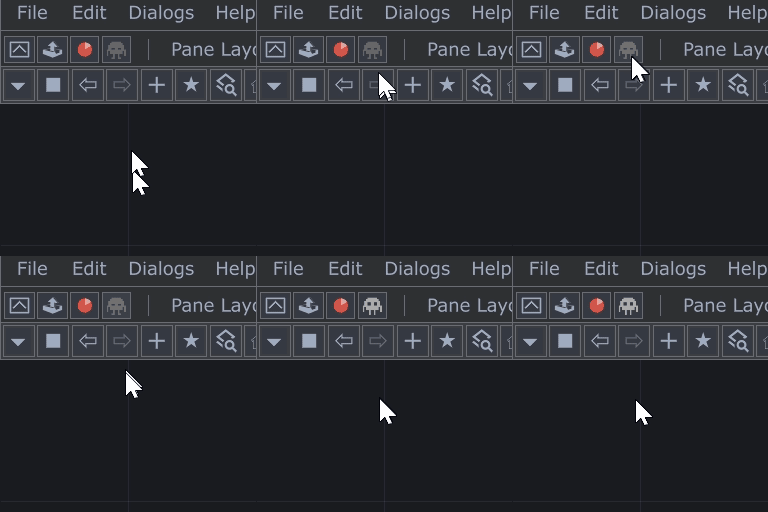
START AUTOMATICALLY ON LAUNCH TD:
Settings -> mcp -> auto start MCP -> Yes
MCP server starts automatically on next TD launch (base port from Settings: mcp -> MCP default port).
ONE-TIME SETUP:
Ask your agent (Cursor/Codex/Claude):
`Add twozero TD MCP for me with server key "twozero_td" and URL "http://localhost:40404/mcp". Configure it globally (user scope) so it is available from any project/workspace.`
MORE INFO:
https://github.com/404dotzero/twozero-td-mcp
NOTES:
twozero must be running in TouchDesigner for the MCP server to be available.
Use Settings -> mcp -> local only MCP to restrict connections to localhost only (recommended).
16. UPDATE
Go to Settings -> Check Updates, confirm if any.
Or
Perform Installation
CHECK UPDATES AUTOMATICALLY ON START TD:
Go to Settings -> Auto Update -> Yes
17. WHY
WHY GRANT ADMIN ACCESS DURING INSTALLATION AND UPDATE?
twozero is designed to be a part of TD ui, not a part of particular .toe file.
It is loaded dynamically in a same way most of TD ui elements are loaded.
After launching TD instance twozero is located here: /ui/dialogs/bookmark_bar which is part of /ui COMP.
/ui COMP is loaded from ui.tox on TD startup. Ui.tox is located in TD installation folder.
During installtion - twozero copies itself to /ui/dialogs/bookmark_bar, adjust some parameters and saves /ui COMP back to TD installation folder.
Saving anything to TD installation folder requires admin access.
18. CHANGELOG
TD build: 2025.33070
August 05, 2026
New 3D generation adapter (image-to-3D, text-to-3D) + smoother updates
TD build: 2025.32820
August 04, 2026
New AI image resolution controls, smoother menu, update reliability fixes
TD build: 2025.32820
August 02, 2026
Compact Create OP window, per-tool window widths + fixed Cmd+Shift+F hotkey
TD build: 2025.32820
August 02, 2026
AI tile rail labels fixed, clickable audio filename, richer AI list tooltips
TD build: 2025.32820
August 02, 2026
TD build: 2025.32820
July 31, 2026
TD build: 2025.32820
July 17, 2026
Fixed plugin panel width after update
TD build: 2025.32820
July 17, 2026
Fixed TouchDesigner closing itself shortly after startup
TD build: 2025.32820
July 17, 2026
TD build: 2025.32820
July 17, 2026
TD build: 2025.32820
July 16, 2026
New minimalistic tool window, Cloud fixes, plugin reload from Settings
TD build: 2025.32820
July 12, 2026
TD build: 2025.32820
July 07, 2026
TD build: 2025.32820
July 01, 2026
TD build: 2025.32820
June 30, 2026
TD build: 2025.32820
June 30, 2026
TD build: 2025.32820
June 30, 2026
TD build: 2025.32820
June 30, 2026
TD build: 2025.32820
June 30, 2026
Smoother, more reliable sign-in
logout now fully clears your Cloud files
TD build: 2025.32820
June 29, 2026
Improved Search OP (name/type filtering)
smoother, faster UI
TD build: 2025.32820
June 22, 2026
Faster, more stable plugin startup
TD build: 2025.32820
June 22, 2026
Fixed account balance not showing on startup
TD build: 2025.32820
June 22, 2026
Quieter Hub sync - no stray Cloud-row error on menu open
TD build: 2025.32820
June 22, 2026
Smoother updates (no admin prompt)
single-window UI
Cloud/Hub
AI adapters
no more ui.tox clashes with other dynamically-loaded UI tools (tdFam & similar)
TD build: 2025.32820
June 21, 2026
TD build: 2025.32820
June 21, 2026
TD build: 2025.32820
May 22, 2026
TD build: 2025.32820
May 19, 2026
TD build: 2025.32820
May 19, 2026
hub: Cancel stops downloads
paste link parity across tools
HUB label
TD build: 2025.32820
May 19, 2026
v3.041: MCP stability + UX polish since 3.035.
(1) MCP: Start() now idempotent — defensive Stop+delayed Start when called while Active, instead of rebinding ports on a live webserverDAT (which left exec_server half-dead). applySettings() pulses Start/Stop only when state needs to change. Fixes "MCP stuck after plugin update / settings reload" cascade.
(2) Logout: background workers stopped on logout
login dialog no longer shows search bar over it.
(3) PisangDialog: guard deferred setKeyboardFocus
install wizard button changed to containerCOMP.
(4) Settings UI: bool-row toggle widget (green=Yes/red=No).
(5) Parser: blacklist renderpickCHOP/DAT pars that hang TD on .page.name access.
(6) td_submit_report: bundles entire chat.md folder, not just chat.md.
TD build: 2025.32820
May 18, 2026
mcp: clearer 3D agent guidance — relativePath patterns + axis tips
TD build: 2025.32820
May 18, 2026
mcp: improved POP/3D guidance for AI agents (37 hints + 23 shots)
TD build: 2025.32820
May 15, 2026
v3.032: product-text audit + CSRF guard. (1) 3 dev-leaks removed from instructions DAT: CLAUDE.md mention, git-revert assumption, production-code/greppability jargon. (2) td_list_instances desc reflects current async-subproc parser perf (was 'synchronous, 30K~3min'
reality 'default subproc, Phase A ~1s/5K ops, empirical 15K~13s'). (3) SECURITY: proxy do_POST rejects browser cross-origin requests via Origin header check -> closes CSRF-from-localhost (browser tab fetching :40404/mcp/text-plain -> exec arbitrary Python). Empirically verified all three.
TD build: 2025.32820
May 14, 2026
v3.031: from lidar's bug-report sweep (manual_report/5_14). (1) FIX: td_get_screenshot returned non-portable path 'tmp/pisang_mcp/screenshots/...' on Windows (resolved drive-relative to whatever cwd's drive). Replaced 3 hardcoded Path('/tmp/...') sites with Path(tempfile.gettempdir()) — now returns proper absolute C:/Users/.../AppData/Local/Temp/... Lidar's agent wasted ~5 turns finding the file. (2) NEW SHOT op:sliderCOMP:value_access — critical-priority. par.value0 already scaled in [valuerange0l, valuerange0h]
panel.u/v for raw 0..1
common bug `lo + value0 (hi-lo)` double-scales (lidar's agent shipped this). Range pars are 0l/0h, NOT 0l/0r. (3) NEW SHOT op:buttonCOMP:color_naming — nice-priority. colorr=label tone, bgcolorr=button face. Counter-intuitive default mapping that tripped lidar's agent.
TD build: 2025.32820
May 14, 2026
v3.030: fix instances=0 bug in telemetry. _t_instances_max was only incremented on register events
once reset at send time, a still-connected TD wouldn't bump it back for the next interval, reporting instances=0. Fix: at snapshot time, combine _t_instances_max with current len(_instances) via max() — captures both the in-interval peak AND the steady-state connection. Lock-less peek on len() is atomic in CPython.
TD build: 2025.32820
May 14, 2026
v3.029: success log adds td_version field — visible proof that _telemetry_pick_td_version resolves the registered instance's tdVersion at send time. Also useful for debugging if TD registers without a tdVersion (degenerate cases). No behaviour change otherwise.
TD build: 2025.32820
May 14, 2026
v3.028: add success log to _telemetry_send. On 2xx response, writes one line to proxy.err.log: '[telemetry] sent OK status=204 chars_in=X chars_out=Y tool_calls=Z ...' Failure path unchanged ('[telemetry] send failed: ...'). Minimum observable change to confirm send pipeline end-to-end.
TD build: 2025.32820
May 14, 2026
v3.027: anonymous usage telemetry MVP shipped. Background daemon thread in proxy_server counts chars_in/out + tool_calls + errors + max instances per interval. Send trigger: (>=100K chars AND >=300s since last) OR 6h keepalive. POSTs to pisang-share Heroku /api/telemetry/usage. Installation ID derived in TD via sha256('twozero:' + licenses.systemCode)[:16] passed as --installation-id arg to proxy_launcher subprocess.Popen. Plugin version passed via --plugin-version. Env var gates: TWOZERO_TELEMETRY=0 disables entirely, TWOZERO_INSTALLATION_ID=
sanity-clamped to backend 400 thresholds. Silent failure on send error (logs to stderr only). Contract empirically verified against live backend (2xx accepted).
TD build: 2025.32820
May 14, 2026
v3.026: proxy owner-watchdog gets a liveness gate. When PARENT_PID has been silent >300s, instead of exiting immediately we run a stdlib tasklist/ps probe to check whether the spawning TD process is still alive AND still a TouchDesigner image. If yes (TD frozen on main thread — long parse, modal dialog, OS suspend) we extend grace and keep checking. If the PID is dead or has been recycled by a non-TD process we declare orphan and exit as before. Probe throttled to once per 30s
name check disambiguates Windows PID reuse. End-to-end state machine verified via offline simulation (3 scenarios: normal pongs / silent-but-alive / owner-dies).
TD build: 2025.32820
May 14, 2026
v3.025: auth pre-flight in td_submit_report(action='export_chat_id'). When user is logged out, server auto-runs newLoginFlow.run() to open the login window in parallel and returns auth_status='login_required' + an English agent_instruction telling the agent to stop and wait for the user's login confirmation. Marker is still returned so the flow can resume seamlessly. Also: submit_report response now includes hub_error and hub_hint on synchronous upload failures (e.g. logged-out direct-text submits), so the agent + user always know exactly what to do — no silent 'upload_failed' dead-ends.
TD build: 2025.32820
May 14, 2026
v3.024: tags param removed from td_submit_report — summary alone carries report intent. Backwards-compatible: legacy tags=[...] callers are silently ignored. meta.json no longer writes a tags field
report_id is now date-only (no _tag suffix). Tool description and inputSchema updated
docs/CLAUDE.md examples cleaned. Empirical-verified locally + Hub upload path.
TD build: 2025.32820
May 14, 2026
submit_report flow hardened — deterministic, single Hub artifact per report: _ts_export_chat no longer uploads to Hub (was always-upload since 2026-05-03 split, creating duplicates when used in bug-report flow)
chat is now saved LOCALLY only, returns 'hub: skipped'. _ts_export_chat_id 'next' field rewritten with explicit 4-step sequence: export_chat_id → td_list_instances (REQUIRED PIVOT) → export_chat → submit_report. ToolsDefinition td_submit_report description: export_chat action wording updated
FULL BUG-REPORT FLOW rewritten as deterministic 5-step with td_list_instances as named canonical pivot. ShotEngine tool:export_chat:marker_race shot rewritten — names td_list_instances as the canonical pivot (was 'any tool — td_get_focus / td_list_instances / td_get_network' which left agent guessing). docs_bug_reports_analysis.md: Chat Export + Full Flow sections rewritten with explicit pivot + local-only export. Result: agent no longer guesses which tool to use as JSONL flush pivot
bug report = 1 Hub artifact (was 2 — chat_export + user_report).
TD build: 2025.32820
May 14, 2026
test_sessions retired (was unused since early dev)
td_test_session tool removed (38->37 tools)
td_submit_report extended with list + pull actions (migration target for browsing past reports)
tool_misc cleanup: removed _ts_start/_ts_note/_ts_import_chat/_ts_end/_ts_dismiss/_ts_auto_export_chat/_active/_no_session_error (-377 lines, 1313->936)
PisangMcp cleanup: removed _testSessions state, _logTestCall method, per-call session logging in both port-A and port-B paths, [test:id] footer, UNLINKED recovery flow (-140 lines)
Hub repo strategy simplified: dropped dev/user auto-detect (_DEV_REPO_ID, _get_repo_mode)
single _HUB_REPO_ID = user_reports
legacy mcp_test_sessions repo stays read-only archive (still filtered into list view)
_session_dir renamed: pisang_mcp/test_sessions/ -> pisang_mcp/reports/
_ts_upload hardcoded type bug fixed: now meta.get('type','user_report') instead of always 'mcp_test_session'
instructions: L271 stale 'submit bug report via td_test_session' replaced with td_submit_report
docs/CLAUDE.md/AGENTS.md updated
PRIVATE/docs_test_session_analysis.md renamed to docs_bug_reports_analysis.md and rewritten (529->389 lines)
TD build: 2025.32820
May 13, 2026
agent-surface sweep from real-world user-report empirical analysis
20 new shots: SOP/POP display flag, geo.par.material, light.par.c, scriptSOP API, addSOP no draw call, glslMAT vdat/pdat + blending menu names, Sequence par numBlocks, midi onebased/sysex/par.active, choptoTOP no input, scriptOp.isTimeSlice locked, findChildren depth exact, Connector.disconnect cascade, td_builtin_shadowing, export_chat marker race, scriptCHOP store/fetch cook-loop, changeType invalidates ref
ShotEngine matcher AND-combine fix: noiseCHOP false-positive cpu_type_used eliminated
new hints: midi (5K), 3d (8K)
glsl rewrite 965->9K chars with debug section
L0 instructions: PARAMETERS + CONNECTIONS inlined as base, +5 new task routings, +6 enrichments
tool_misc: Hub upload 401 surfaces in textport with newLoginFlow instruction
TD build: 2025.32820
May 13, 2026
hub: capture preview screenshot on save-selection (priority: containerCOMP > baseCOMP > COMP > TOP)
hub: confirm-upload sends inheritPreviews=false so each file version gets exactly one fresh preview
hub: 3-phase async preview upload (R2 presigned) chained after file upload, fire-and-forget
TD build: 2025.32820
May 12, 2026
hub: upload now writes metadata.td_build (app.build) for new versions
hub: tdBuild column (100px) after date in file/version/latest listings + hub_link views
hub: Collect dialog count + size now match actual zip (dedupe by source path)
library: same Collect dedup fix
ai tool: removed dead Library save flow (~160 lines, never wired)
TD build: 2025.32820
May 12, 2026
hub: paste any twozero.ai/hub link from any tool to open it
hub: streaming downloads with live progress + disk cache by hub code
hub: file_/ver_ click skips intermediate single-file view (one click)
hub: share-recipient downloads auto-place via copyOPs (no ghost cursor)
hub: unified column widths across all levels
logout: wipe per-user cache on disk (downloads, history, feed, indexes, avatars)
login: restored "Login via browser"
post-login routes to root
login: balance check on entering universalLogin from AI tool
ai: low-balance overlay ($0.01) with billing link
recheck on each Run
ai: inference retry (3 attempts) for transient network failures
ai: generic clickable errorOverlay (replaces lowBalance)
publisher: checkAll resets hub.par.Devmode too
TD build: 2025.32820
May 12, 2026
TD build: 2025.32280
May 11, 2026
TD build: 2025.32280
May 11, 2026
TD build: 2025.32280
May 10, 2026
TD build: 2025.32280
May 08, 2026
TD build: 2025.32280
May 08, 2026
TD build: 2025.32280
May 04, 2026
TD build: 2025.32280
May 03, 2026
TD build: 2025.32280
May 03, 2026
TD build: 2025.32280
May 03, 2026
removed unused mcp tools, bugfixes
TD build: 2025.32280
May 03, 2026
Codex support fix.
td_get_errors optimizations
TD build: 2025.32280
May 02, 2026
TD build: 2025.32280
May 01, 2026
TD build: 2025.32280
April 30, 2026
TD build: 2025.32280
April 30, 2026
TD build: 2025.32280
April 29, 2026
TD build: 2025.32280
April 27, 2026
TD build: 2025.32280
April 27, 2026
TD build: 2025.32280
April 27, 2026
TD build: 2025.32280
April 27, 2026
TD build: 2025.32280
April 27, 2026
TD build: 2025.32280
April 27, 2026
TD build: 2025.32280
April 27, 2026
TD build: 2025.32280
April 27, 2026
TD build: 2025.32280
April 27, 2026
TD build: 2025.32280
April 27, 2026
TD build: 2025.32280
April 22, 2026
TD build: 2025.32280
April 22, 2026
TD build: 2025.32280
April 22, 2026
TD build: 2025.32280
April 22, 2026
TD build: 2025.32280
April 22, 2026
TD build: 2025.32280
April 21, 2026
TD build: 2025.32280
April 21, 2026
TD build: 2025.32280
April 13, 2026
TD build: 2025.32280
April 13, 2026
TD build: 2025.32280
April 13, 2026
TD build: 2025.32280
April 13, 2026
TD build: 2025.32280
April 11, 2026
TD build: 2025.32280
April 11, 2026
TD build: 2025.32280
April 11, 2026
TD build: 2025.32280
April 10, 2026
TD build: 2025.32280
April 10, 2026
TD build: 2025.32280
April 10, 2026
TD build: 2025.32280
April 10, 2026
TD build: 2025.32280
April 10, 2026
TD build: 2025.32280
April 10, 2026
TD build: 2025.32280
April 10, 2026
TD build: 2025.32280
April 09, 2026
TD build: 2025.32280
April 09, 2026
TD build: 2025.32280
April 09, 2026
TD build: 2025.32280
April 09, 2026
TD build: 2025.32280
April 08, 2026
TD build: 2025.32280
April 08, 2026
TD build: 2025.32280
April 07, 2026
TD build: 2025.32280
April 07, 2026
TD build: 2025.32280
April 07, 2026
TD build: 2025.32280
April 07, 2026
TD build: 2025.32280
April 06, 2026
TD build: 2025.32280
April 06, 2026
TD build: 2025.32280
April 06, 2026
TD build: 2025.32280
April 06, 2026
TD build: 2025.32280
April 06, 2026
TD build: 2025.32280
April 06, 2026
TD build: 2025.32280
April 06, 2026
TD build: 2025.32280
April 06, 2026
TD build: 2025.32280
April 06, 2026
TD build: 2025.32280
April 06, 2026
TD build: 2025.32280
April 06, 2026
TD build: 2025.32280
April 06, 2026
TD build: 2025.32280
April 06, 2026
TD build: 2025.32280
April 05, 2026
TD build: 2025.32280
April 05, 2026
TD build: 2025.32280
April 05, 2026
TD build: 2025.32280
April 05, 2026
TD build: 2025.32280
April 05, 2026
TD build: 2025.32280
April 05, 2026
TD build: 2025.32280
April 05, 2026
TD build: 2025.32280
April 05, 2026
TD build: 2025.32280
April 05, 2026
TD build: 2025.32280
April 05, 2026
TD build: 2025.32280
April 05, 2026
TD build: 2025.32280
April 05, 2026
TD build: 2025.32280
April 05, 2026
TD build: 2025.32280
April 05, 2026
TD build: 2025.32280
April 05, 2026
TD build: 2025.32280
April 05, 2026
TD build: 2025.32280
April 05, 2026
TD build: 2025.32280
April 05, 2026
TD build: 2025.32280
April 05, 2026
TD build: 2025.32280
April 05, 2026
TD build: 2025.32280
April 05, 2026
TD build: 2025.32280
April 04, 2026
TD build: 2025.32280
April 04, 2026
TD build: 2025.32280
April 04, 2026
TD build: 2025.32280
April 04, 2026
TD build: 2025.32280
April 04, 2026
TD build: 2025.32280
April 04, 2026
TD build: 2025.32280
April 04, 2026
TD build: 2025.32280
April 04, 2026
TD build: 2025.32280
April 04, 2026
TD build: 2025.32280
April 03, 2026
TD build: 2025.32280
April 03, 2026
TD build: 2025.32280
April 03, 2026
TD build: 2025.32280
April 03, 2026
TD build: 2025.32280
April 03, 2026
TD build: 2025.32280
April 03, 2026
TD build: 2025.32280
April 03, 2026
TD build: 2025.32280
April 03, 2026
TD build: 2025.32280
April 03, 2026
TD build: 2025.32280
April 03, 2026
TD build: 2025.32280
April 03, 2026
TD build: 2025.32280
April 03, 2026
TD build: 2025.32280
April 03, 2026
TD build: 2025.32280
April 03, 2026
TD build: 2025.32280
April 02, 2026
TD build: 2025.32280
April 01, 2026
TD build: 2025.32280
April 01, 2026
TD build: 2025.32280
March 30, 2026
TD build: 2025.32280
March 26, 2026
TD build: 2025.32280
March 26, 2026
TD build: 2025.32280
March 26, 2026
TD build: 2025.32280
March 25, 2026
TD build: 2025.32280
March 25, 2026
TD build: 2025.32280
March 25, 2026
macOs install improvemnts
TD build: 2025.32280
March 25, 2026
TD build: 2025.32280
March 25, 2026
TD build: 2025.32280
March 25, 2026
TD build: 2025.32280
March 25, 2026
searchCode inprovements
TD build: 2025.32280
March 25, 2026
TD build: 2025.32280
March 24, 2026
TD build: 2025.32280
March 24, 2026
TD build: 2025.32280
March 24, 2026
TD build: 2025.32280
March 24, 2026
TD build: 2025.32280
March 24, 2026
TD build: 2025.32280
March 24, 2026
TD build: 2025.32280
March 24, 2026
TD build: 2025.32280
March 24, 2026
TD build: 2025.32280
March 24, 2026
Shots: contextual knowledge injection system for MCP tool responses
TD build: 2025.32280
March 21, 2026
TD build: 2025.32280
March 20, 2026
MCP hints improvements
TD build: 2025.32280
March 19, 2026
TD build: 2025.32280
March 15, 2026
TD build: 2025.32280
March 15, 2026
TD build: 2025.32280
March 15, 2026
TD build: 2025.32280
March 15, 2026
ai tool: single-model families shown as flat row (no family header)
LogProxy conditional logging in ai_templates
TD build: 2025.32280
March 15, 2026
context menus: toolSelect (assign/change hotkey), createOP (reset defaults), library (navigate/delete), searchRecentFile (navigate/open in new window)
TD build: 2025.32280
March 15, 2026
context menu on right-click in Recent Projects
TD build: 2025.32280
March 14, 2026
TD build: 2025.32280
March 14, 2026
TD build: 2025.32280
March 13, 2026
TD build: 2025.32280
March 13, 2026
TD build: 2025.32280
March 13, 2026
td_input: cross-platform mouse/keyboard simulation for agents. td_op_screen_rect: operator screen coords. target_instance routing for multi-TD workflows.
TD build: 2025.32280
March 13, 2026
add target_instance routing for multi-instance support
TD build: 2025.32280
March 12, 2026
TD build: 2025.32280
March 11, 2026
TD build: 2025.32280
March 06, 2026
TD build: 2025.32280
March 06, 2026
TD build: 2025.32280
March 05, 2026
TD build: 2025.32280
March 05, 2026
TD build: 2025.32280
March 05, 2026
TD build: 2025.32280
March 05, 2026
TD build: 2025.32280
March 05, 2026
TD build: 2025.32280
March 05, 2026
TD build: 2025.32280
March 05, 2026
TD build: 2025.32280
March 05, 2026
pisang -> twozero
TD build: 2025.32280
March 05, 2026
TD build: 2025.32280
March 02, 2026
TD build: 2025.32280
March 02, 2026
TD build: 2025.32280
March 02, 2026
TD build: 2025.32280
March 01, 2026
screenshots: JPEG auto for viewer, smart size detection via OnViewerSizeDetected, quality=0.85, batch default 256px, format param
td_get_focus(screenshots=true): auto-batch screenshots of selected ops
screenshots hints key with resolution rules
TD build: 2025.32280
March 01, 2026
td_get_screenshots batch tool: multi-operator screenshots in one call, batchId polling, output_dir option
TD build: 2025.32280
March 01, 2026
td_get_screenshot: as_top mode (selectTOP+switchTOP, preserves alpha), output_path param, max_size param, async queue with fallback warning
TD build: 2025.32280
March 01, 2026
td_get_screenshot tool: async PNG capture via opviewerTOP+moviefileoutTOP, max_size param, multi-word search in searchRecentFile/VST/palette/searchCode, MCP hints updated with ui_analysis key
TD build: 2025.32280
March 01, 2026
multi-word search in Recent Projects, VST, Palette, Search Code
TD build: 2025.32280
March 01, 2026
TD build: 2025.32280
February 28, 2026
TD build: 2025.32280
February 28, 2026
TD build: 2025.32280
February 27, 2026
Hub: repos-level file search, direct download and versions navigation, back navigation restores search and cursor
TD build: 2025.32280
February 27, 2026
added MCP section to documentation
TD build: 2025.32280
February 27, 2026
Locations: fixed LMB click not navigating to location
TD build: 2025.32280
February 27, 2026
Hub: login now uses email + code flow (same as AI tool), no more slash commands needed
TD build: 2025.32280
February 27, 2026
TD build: 2025.32280
February 27, 2026
TD build: 2025.32280
February 27, 2026
TD build: 2025.32280
February 27, 2026
TD bug custom parameters + placeOPs avoience
TD build: 2025.32280
February 27, 2026
MCP + twozero.ai
ai models selection auto/specific
Massive refactor with agent help
agent_md
TD build: 2025.32280
February 22, 2026
TD build: 2025.32280
February 22, 2026
TD build: 2025.32280
February 21, 2026
TD build: 2025.32280
February 21, 2026
bugfix: createOp from hotkey
TD build: 2025.32280
February 21, 2026
ai fetch history fix
TD build: 2025.32280
February 21, 2026
ai updates - ensure Genmusicpar
TD build: 2025.32280
February 13, 2026
ai history
auto apdate ai-adapter COMPs
TD build: 2025.32280
February 10, 2026
TD build: 2025.32280
February 10, 2026
hub refactor and python threadings
TD build: 2025.32280
February 09, 2026
TD build: 2025.32280
February 04, 2026
TD build: 2025.32280
February 04, 2026
ai login with email
TD build: 2025.32280
February 04, 2026
TD build: 2025.32280
January 24, 2026
ai adapters - display filename
TD build: 2025.32280
January 23, 2026
TD build: 2025.32280
January 23, 2026
TD build: 2025.32280
January 23, 2026
TD build: 2025.32280
January 23, 2026
TD build: 2025.32280
January 23, 2026
TD build: 2025.32280
January 23, 2026
TD build: 2025.32280
January 23, 2026
TD build: 2025.32280
January 23, 2026
TD build: 2025.32280
January 22, 2026
ai-image v2.01
TD build: 2025.32280
January 22, 2026
TD build: 2025.32280
January 22, 2026
ai save inputs improvemnts
TD build: 2025.32280
January 22, 2026
TD build: 2025.32280
January 22, 2026
TD build: 2025.32280
January 22, 2026
ai logged out handle
TD build: 2025.32280
January 22, 2026
TD build: 2025.32280
January 21, 2026
TD build: 2025.32280
January 21, 2026
TD build: 2025.32280
January 21, 2026
TD build: 2025.32280
January 21, 2026
ai: history
TD build: 2025.32260
January 20, 2026
TD build: 2025.32260
January 20, 2026
global shortcut
TD build: 2025.32260
January 20, 2026
model selection improvements
TD build: 2025.32260
January 20, 2026
ai stuff in progress
TD build: 2025.32260
January 20, 2026
fixed broken panels while creating COMPs
global shortcut
TD build: 2023.12480
April 09, 2026
bridge: switch 2023 update channel to log-2023.txt
TD build: 2023.12480
January 15, 2026
hub load toxes as lib to avoid 2025 panel bug, temporary. Waiting for Derivative fix
TD build: 2023.12480
December 28, 2025
still fighting with 2025 panels bugs...
TD build: 2023.12480
November 20, 2025
cleanup
TD build: 2023.12480
November 15, 2025
bugfix: palette
prod brunch
Hub: direct download/upload
library temp solution for experimental TD
ignore locked OPs while collecting asstes
perform mode - do not autosave, do not scroll change parameters
hub search improvements
recent projects - improvements
Experimental log project encoding fix
TD 2025.30960 avoid bug when creating panelCOMPs
createOP sorting improvements
createOP family labels
selectMAT selectCOMP handle
pop families on left/right keys
remove debug()
library, hub - clear externaltox par when save to
manage vst save project
recent projects - search from othere machines improvements
date format
uppercase handle for hub and locations
repo owner to title
manage vst behavour to follow recent TD bugfixes:
Hub: cache repo index
selectTool search improvemnts
lib fix
library uuid fix
Library, hub - better VST handling
VST checker
VST improvemnts
do not auto save if project not modified
VST improvemnts
Compatible ops fix
hub - files fix
createOP bifixes (when creating compatible ops)
hub: ower/repo for shared repos
createOP: creating selectOP improovements
POPs
autosave blank project fix
dev brunch
hubb
hub
hub test
Teams Alpha
TD build: 2023.12230
May 31, 2025
Library tool - collects and relinks external assets
Location tool: save and nbavigate to specific project locations.
Library and Location tools: delete items with Ctrl(Cmd) + Del(Backspace)
TD build: 2023.12230
April 21, 2025
library ignore ._files
TD build: 2023.12230
April 21, 2025
Search OP improvements
searchOP - instantly navigate to the first found OP
TD build: 2023.12230
March 05, 2025
Keyboard modKeys read from native ctypes to avoid TD bug
TD build: 2023.12120
March 01, 2025
library: automatic renaming ops improvements
TD build: 2023.12120
January 29, 2025
bugfix
TD build: 2023.12120
January 29, 2025
bugfix
TD build: 2023.12120
January 29, 2025
createOp dialog - family filter by pressing TAB or LEFT/RIGHT
TD build: 2023.12120
January 25, 2025
fixed default settings: tab hotkey
TD build: 2023.12000
December 13, 2024
Library Tool: no name auto completions while adding template
TD build: 2023.12000
December 10, 2024
Recent Projects: automatically finds projects located in shared folders saved from other machines.
TD build: 2023.12000
December 07, 2024
library save bugfix
TD build: 2023.12000
December 07, 2024
createOP sorting improvements
bugfixes
TD build: 2023.12000
November 25, 2024
improvements: do not autoSave blank project
TD build: 2023.12000
November 15, 2024
fixed: library does not working on first install
TD build: 2023.12000
November 13, 2024
recent files on RMB fix
TD build: 2023.12000
November 12, 2024
alt+scroll par -> affect parGroup
TD build: 2023.12000
November 09, 2024
no privacy
TD build: 2023.11760
June 23, 2024
UTF-8 with BOM
TD build: 2023.11760
June 23, 2024
log files force encoding
TD build: 2023.11760
June 19, 2024
quick switch to TD create OP
TD build: 2023.11760
June 18, 2024
scroll parameters for multiple ops
TD build: 2023.11760
June 18, 2024
handle binded parameters on scroll mouse
TD build: 2023.11760
May 30, 2024
shift + click -> opens library instead of createOP
TD build: 2023.11760
May 29, 2024
createOp search and sort improovments
TD build: 2023.11760
May 28, 2024
scroll binded parameters
TD build: 2023.11760
May 28, 2024
FIRST PUBLIC RELEASE